





The main goal of DockSTARTer2 is to make it quick and easy to get up and running with Docker.
You may choose to rely on DockSTARTer2 for various changes to your Docker system or use DockSTARTer2 as a stepping stone and learn to do more advanced configurations.
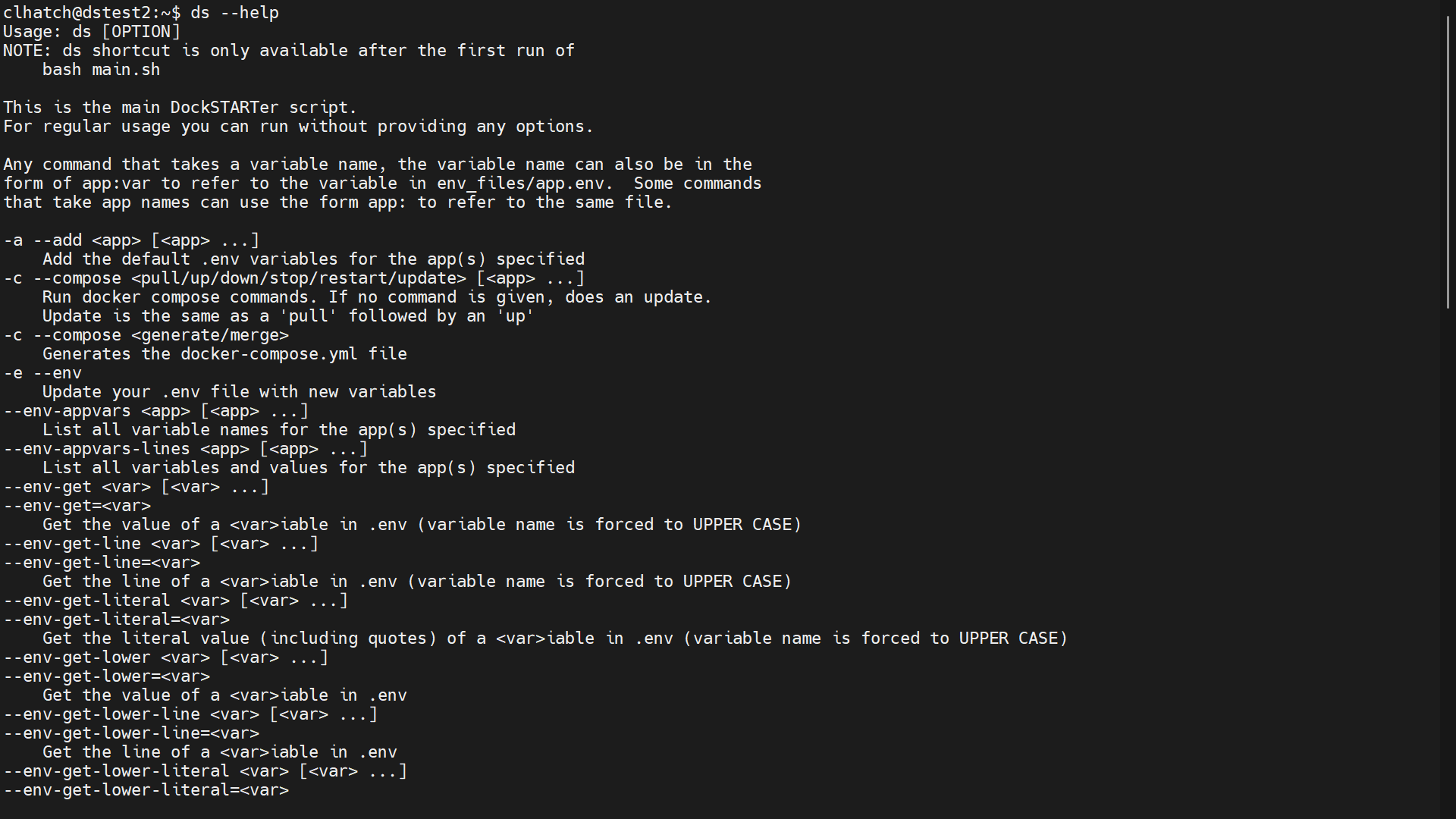
Getting Started
System Requirements
- You must be running a supported platform or an operating system based on a supported platform. Platforms named below will link to documentation listing compatible versions.
- You must be logged in as a non-root user with sudo permissions.
- The only dependencies is a working Docker install.
shandcurlorwgetare needed only to fetch and run the install script.
One Time Setup (required)
Below are the commands for various systems to install curl and Docker:
- APK Systems (Alpine)
- APT Systems (Debian)
Use Docker's convenience script (this also installs Docker Compose):
or install manually (this doesn't install Docker Compose):
sudo apt-get update
sudo apt-get install ca-certificates curl
sudo install -m 0755 -d /etc/apt/keyrings
sudo curl -fsSL https://download.docker.com/linux/debian/gpg -o /etc/apt/keyrings/docker.asc
sudo chmod a+r /etc/apt/keyrings/docker.asc
sudo tee /etc/apt/sources.list.d/docker.sources <<EOF
Types: deb
URIs: https://download.docker.com/linux/debian
Suites: $(. /etc/os-release && echo "$VERSION_CODENAME")
Components: stable
Architectures: $(dpkg --print-architecture)
Signed-By: /etc/apt/keyrings/docker.asc
EOF
sudo apt-get update
sudo apt-get install docker-ce docker-ce-cli containerd.io
Raspbian requires a few extra commands, and isn't reliably covered by the manual apt repository method above -- use Docker's convenience script instead
sudo apt-get update
sudo apt-get dist-upgrade
sudo apt-get install curl
bash -c "$(curl -fsSL https://get.docker.com)"
OpenMediaVault (OMV) requires special instructions found here
- APT Systems (Ubuntu)
Use Docker's convenience script (this also installs Docker Compose):
or install manually (this doesn't install Docker Compose):
sudo apt-get update
sudo apt-get install ca-certificates curl
sudo install -m 0755 -d /etc/apt/keyrings
sudo curl -fsSL https://download.docker.com/linux/ubuntu/gpg -o /etc/apt/keyrings/docker.asc
sudo chmod a+r /etc/apt/keyrings/docker.asc
sudo tee /etc/apt/sources.list.d/docker.sources <<EOF
Types: deb
URIs: https://download.docker.com/linux/ubuntu
Suites: $(. /etc/os-release && echo "${UBUNTU_CODENAME:-$VERSION_CODENAME}")
Components: stable
Architectures: $(dpkg --print-architecture)
Signed-By: /etc/apt/keyrings/docker.asc
EOF
sudo apt-get update
sudo apt-get install docker-ce docker-ce-cli containerd.io
- DNF Systems (Fedora)
Use Docker's convenience script (this also installs Docker Compose):
or install manually (this doesn't install Docker Compose):
sudo dnf install curl
sudo dnf config-manager addrepo --from-repofile https://download.docker.com/linux/fedora/docker-ce.repo
sudo dnf install docker-ce docker-ce-cli containerd.io
sudo systemctl enable --now docker
- Pacman Systems (Arch, Manjaro, EndeavourOS, etc.)
- DNF/YUM Systems (CentOS)
Use Docker's convenience script (this also installs Docker Compose):
or install manually (this doesn't install Docker Compose):
sudo dnf -y install dnf-plugins-core curl
sudo dnf config-manager --add-repo https://download.docker.com/linux/centos/docker-ce.repo
sudo dnf install docker-ce docker-ce-cli containerd.io
sudo systemctl enable --now docker
- MacOS Systems (Homebrew)
or
Then run the installer:
- Additional Steps for MacOS:
- Run Docker at start up:
- In docker desktop (Docker.app) open settings and ensure "Start Docker Desktop when you sign in to your computer" is enabled in the General heading. This step is required to to start docker automatically after a restart and allow DockSTARTer to communicate with the docker daemon.
- Approve Docker keychain permissions:
- At least once after installing DockSTARTer2 open the terminal.app from the MacOS desktop and run the DockSTARTer2 command
ds2. A keychain access dialog will pop up. Type your MacOS login password into the dialog and click on "Always Allow".
- At least once after installing DockSTARTer2 open the terminal.app from the MacOS desktop and run the DockSTARTer2 command
Running DockSTARTer
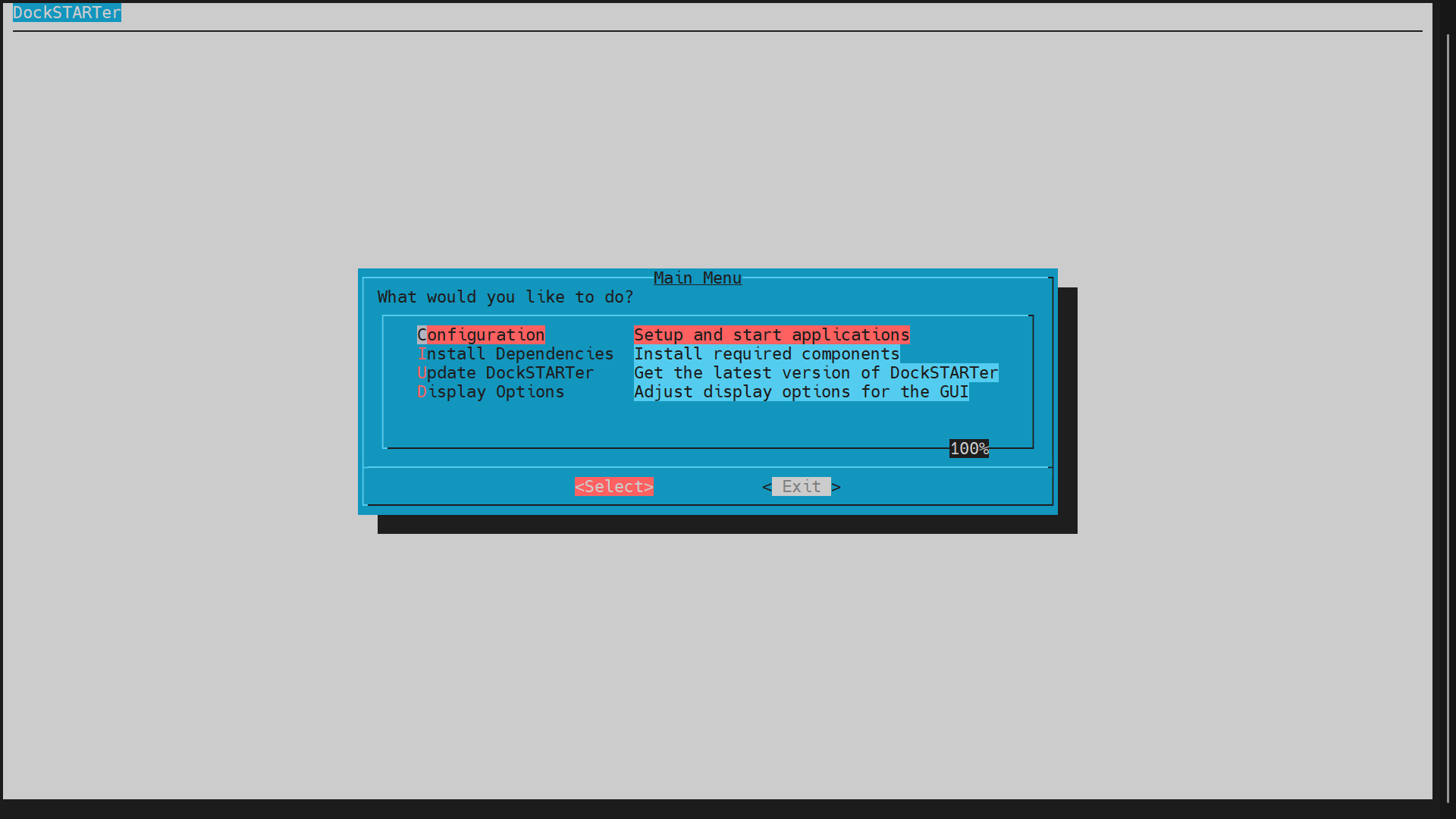
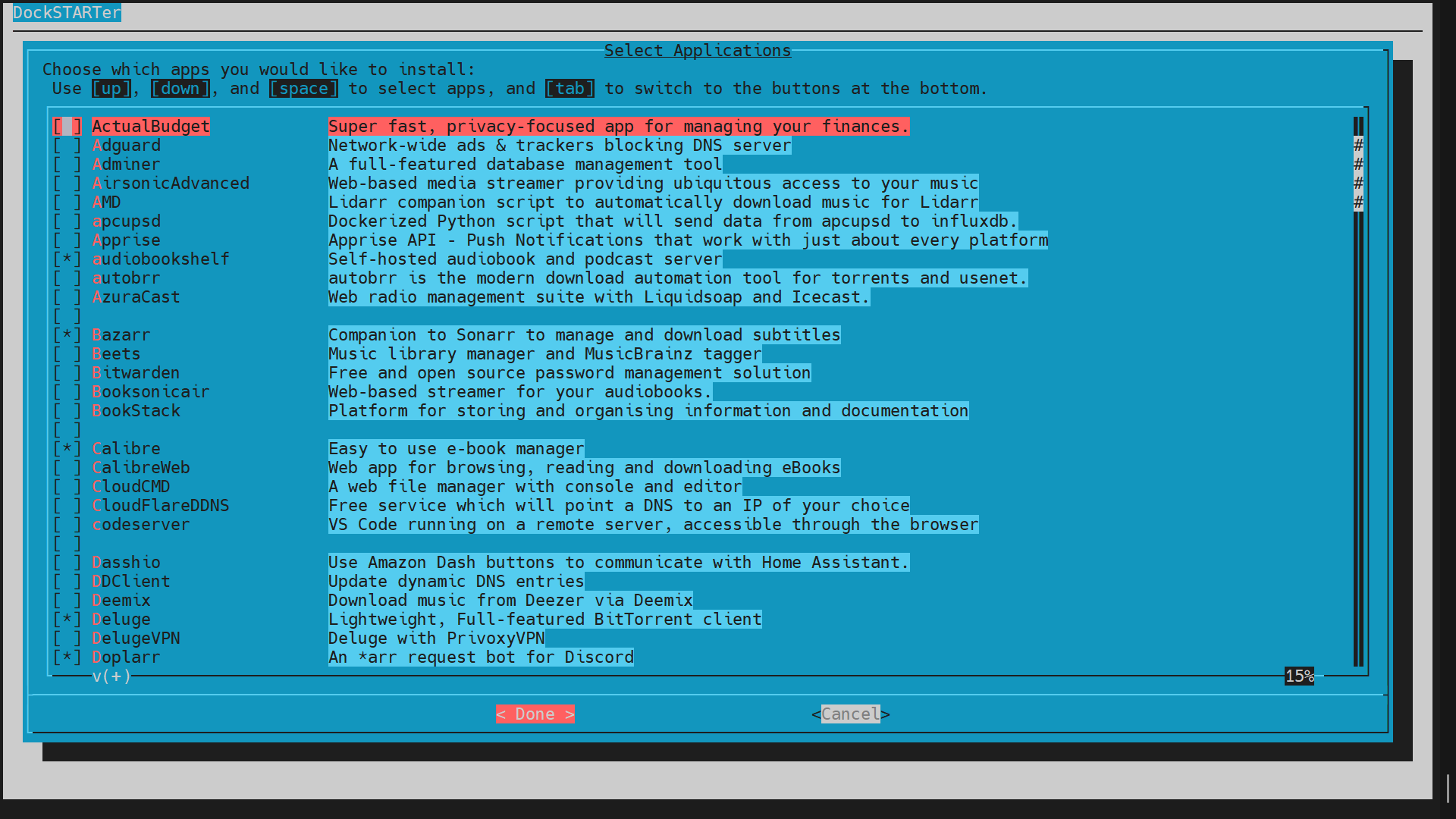
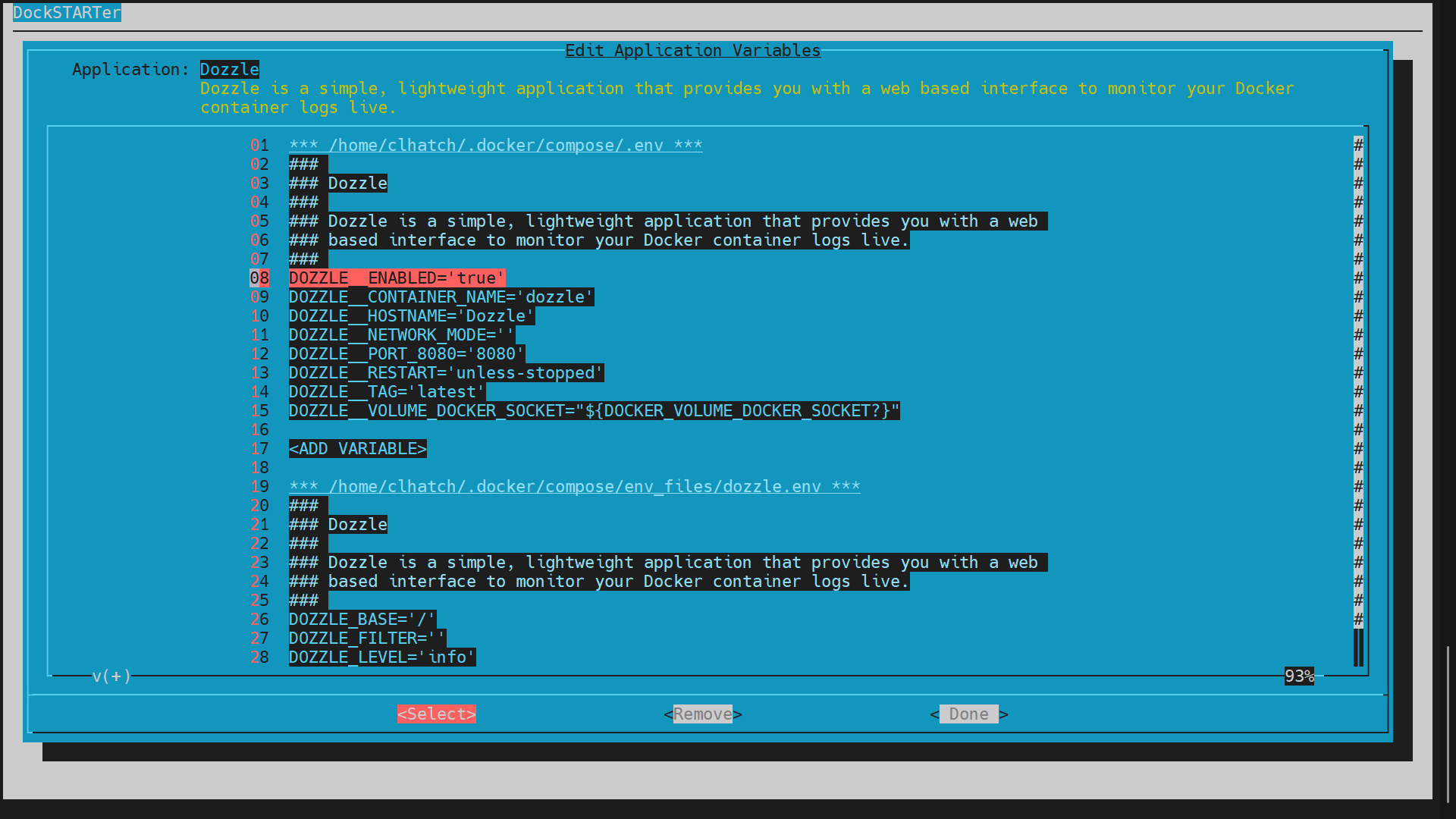
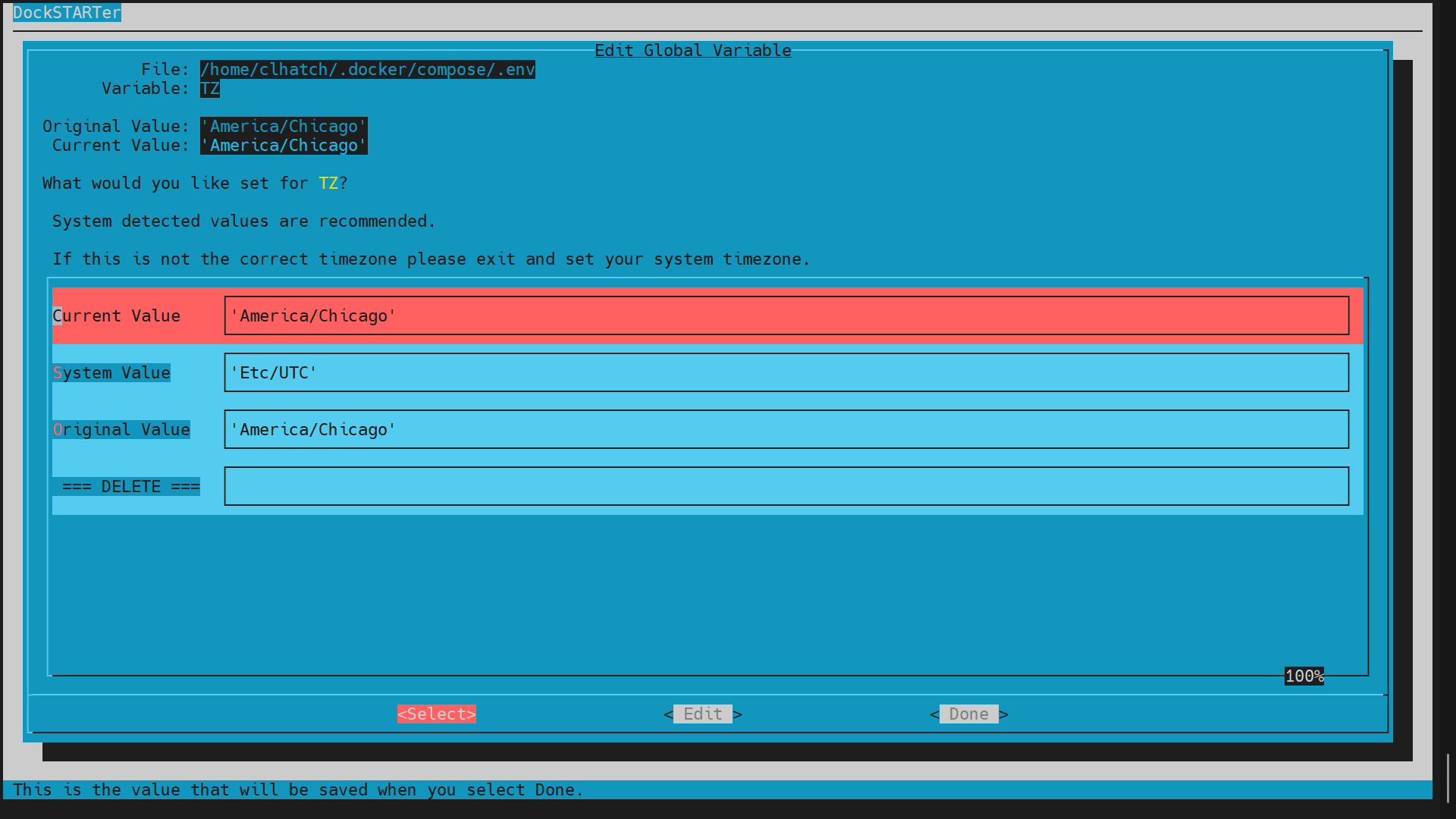
To run DockSTARTer, use the command above. You should now see the main menu from the screenshots. Select Configuration and then Full Setup, and you will be guided through selecting apps and starting containers.
See our documentation for more detailed information.
Support

Click the chat badge to join us on Discord for support!
Additional information can be found on our Support Page.
Contributing
Want to help develop DockSTARTer? Check out our contributing guidelines and code of conduct.
Contributors

This project exists thanks to all the people who contribute.

Supporters
Support the project by donating on Open Collective.
Backers

Thank you to all our backers! Become a backer.

Sponsors

Support this project by becoming a sponsor. Your logo will show up here with a link to your website. Become a sponsor.



Special Thanks
- SmartHomeBeginner.com for creating AtoMiC-ToolKit that served as this project's primary inspiration, and later this guide that provided some initial direction with Docker.
- LinuxServer.io for maintaining most Docker images used in this project.